Version comparison
With the version comparison function, you can keep an overview of all changes made with the App Designer. You can compare your customized forms with the default forms of SmartWe anytime.
The version comparison is available for the SmartDesign and dashboard apps that are included in SmartWe by default. The version comparison is not available for custom apps.
You can find more information on the version comparison functions on the following pages:
Functions of the version comparison
Customized default forms
The default forms included in SmartWe have been revised extensively for SmartWe 8.1.
For example, the most important data is now displayed in the Summary element in most data record types. In some data record types, the dossier is displayed on the right of the remaining data and spans the entire height of the page. Using more graphical elements, we have also improved the readability of the data.
During the distribution of the new default forms, the system will attempt to automatically change the existing forms. In the process, the system will attempt to adopt the new forms in your application. In many cases, the automatic update will be successful and you will not have to spring into action.
In some cases, however, the changes may only be adopted in part or not at all:
- Your forms cannot be updated if you have deleted elements or fields that are included in the default form.
- If your settings deviate from the default forms, they will not be overwritten.
Identifying forms that require manual changes
If forms could not be automatically changed in SmartWe, a message is displayed after starting SmartWe. This message is opened for each administrator immediately after logging on to SmartWe.
Example message:
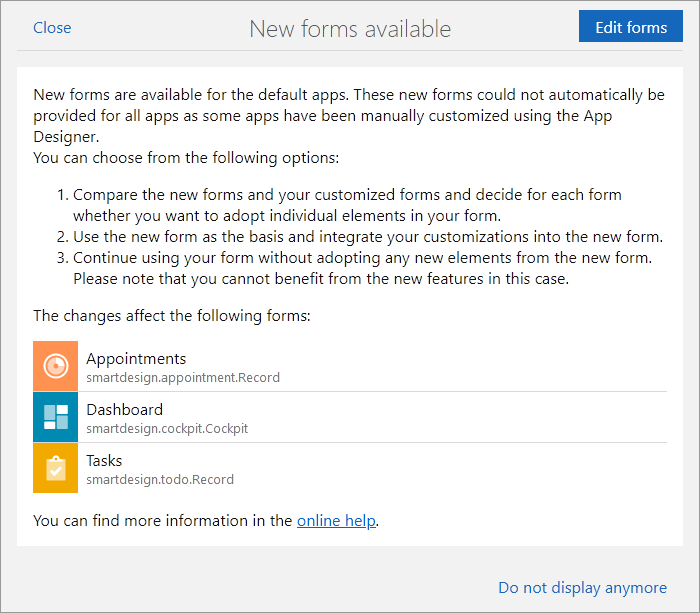
Button | Description |
|---|---|
Close | You can close the window if you do not want to edit the forms immediately. The message will be displayed again the next time you log on to SmartWe. |
Edit forms | When you click Edit forms, you are forwarded to the following page: . On this page, you can view the new forms and edit them. |
Do not display anymore | If you do not want to receive the message again, click Do not display any more. All forms that have not been edited are still displayed in the App Designer area of the Administration app as long as you do not remove the forms from the list. |