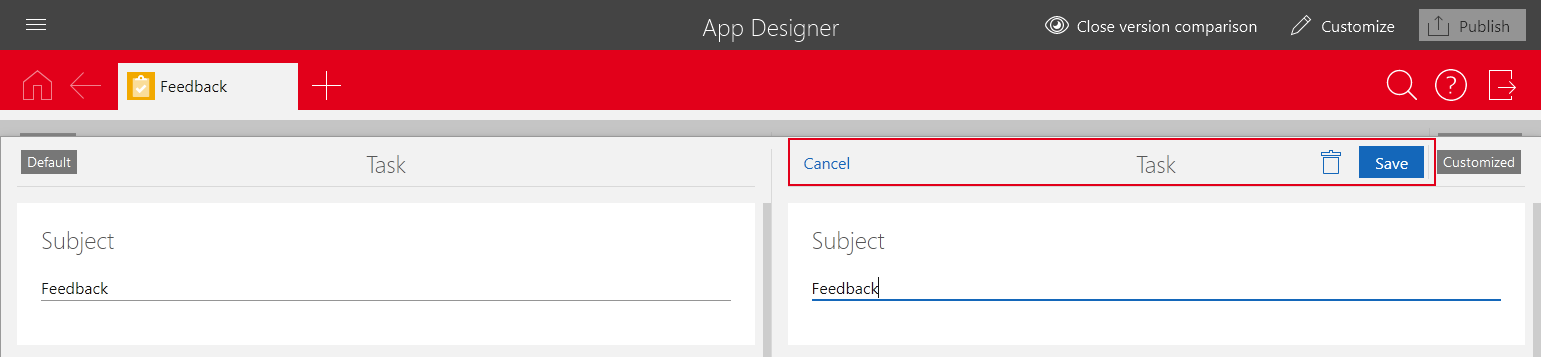
Opening the version comparison in an app
You can always open the version comparison in the SmartDesign and dashboard apps. This also applies if the forms of the app have been changed automatically. Thus, you can always compare your customizations with the SmartWe default forms.
In SmartDesign apps, you need to open the version comparison while in the read mode of a data record.
Important information
- You always need to first open the version comparison. This means, you first have to click Open version comparison before you click Customize.
- You can use the version comparison function both in read and in editing mode of a form. However, you can only start the version comparison while in the read mode of the mask.
- While the version comparison is running, you can still customize the form. However, the display of the form may not conform with the usual display, as both versions of the form need to be displayed next to each other. Depending on your screen size, the layout may, for example, be displayed in single-column format. If required, use the zoom function of your browser to achieve a clear presentation.
As long as the version comparison is opened, you can not use all buttons on the corresponding SmartWe tab. For example, you cannot click Back to switch data records. If you want to use all functions again, you need to first click Close version comparison in the App Designer toolbar.
However, you can still open more tabs in SmartWe even if the version comparison is opened. You can use all functions as usual on the tabs on which you have not opened the version comparison.
Using the version comparison in read mode
- Start the App Designer.
- Open the desired app.
- Open a data record in read mode.
- Click Open version comparison in the App Designer toolbar.
- The version comparison is opened for the read mode of the form.
- Click Customize in the App Designer toolbar.
- You can now compare and customize the read mode form.
The differences between the form settings and missing elements are highlighted in color and can thus easily be identified and compared.
If you want to use the version comparison in the editing mode of a form, one further step is required.
Using the version comparison in editing mode
- Start the App Designer.
- Open the desired app.
- Open a data record in read mode.
- Click Open version comparison in the App Designer toolbar.
- The version comparison is opened for the read mode of the form.
- Click the Edit button in the data record.
- The form is displayed in the editing mode and can now be compared with the SmartWe default form.
- Click Customize in the App Designer toolbar.
- You can now compare and customize the editing mode form.
The differences between the form settings and missing elements are highlighted in color and can thus easily be identified and compared.
If you want to leave the editing mode of the data record again, click the Cancel button in the data record. The buttons are only available on the right side of the version comparison as this side displays the active form.