Structure of the App Designer
In the example you will see a data record type form. You are free to change the layout of this form for each data record type.
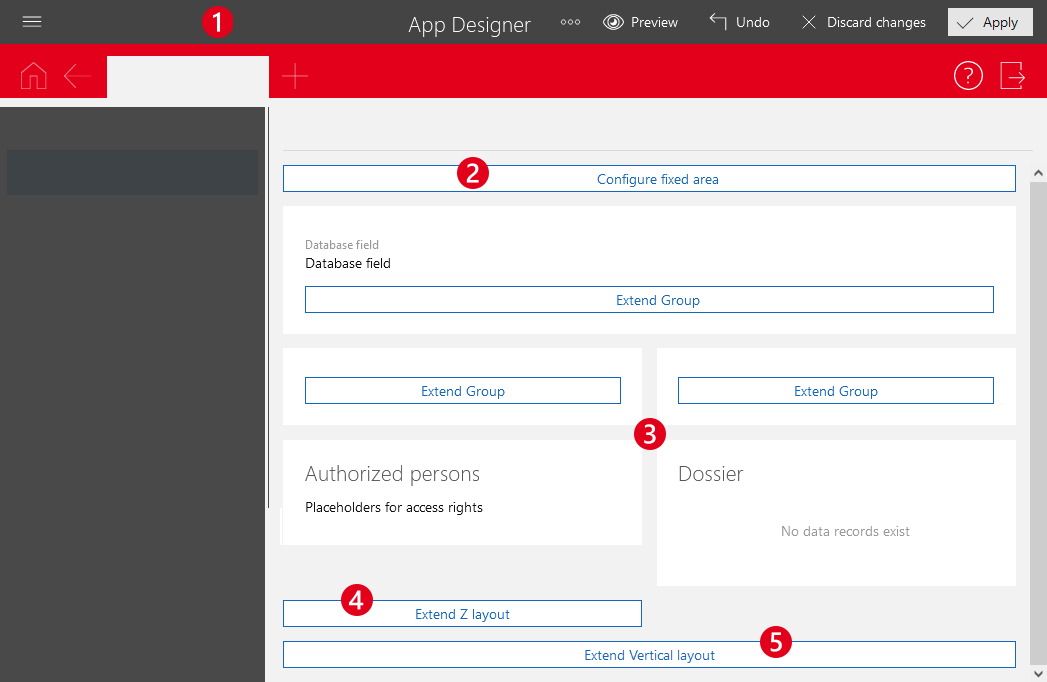
❶ App Designer toolbar
The App Designer toolbar functionality will change depending on the page you have open. For example, using these buttons you can create a new SmartDesign app.
❷ Frozen area
The frozen area is always displayed at the top. Here you can define fields which you also want to be visible when scrolling, for example, a business card for contacts.
You can select between a dynamic and a static layout. If you work with the dynamic layout, you can additionally set a reduced display mode that will be displayed when scrolling.
❸ Groups
Groups include any elements and fields of the data record type. You can usually define yourself which field groups are contained in a group.
Some groups cannot be extended by further field, for example, the Authorized persons group or the Dossier.
❹ Z layout
The Z layout is an element to design the content. All elements included in the Z layout are structured in a way that they can be read from left to right. The Z layout includes columns. The number of columns depends, among other things, on the size of the browser window.
❺ Vertical layout
The vertical layout forms the outermost frame of the mask for most data record types. You can adjust this display to your requirements.