App Designer toolbar
You control the App Designer via the toolbar which is displayed above the header area in SmartWe after you have started the App Designer.

Depending on the opened page, the toolbar contains different functions.
View menu
The view menu is always available and is displayed at the left-hand edge of the toolbar.
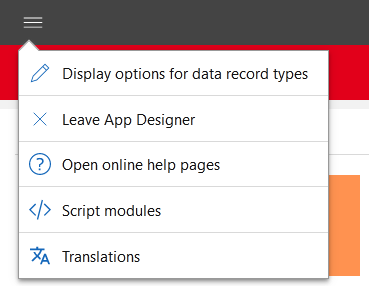
Function | Description | |
|---|---|---|
Display options for data record types | With this button, you open the Display options for data record types window. | |
Edit app | This button is only available if you have opened an app. With this button, you open the settings for the opened app. In the window, you can define various basic settings for apps. Depending on the app type, different settings are available. | |
Exit the App Designer | Using this button, you can close the App Designer without saving your changes. All changes which have not been published will be lost. This button is not displayed if you are editing a form. | |
Open online help pages | Using this button, you open the App Designer Online Help. |


New app
The New app menu is only displayed on the homepage of a SmartDesign App.
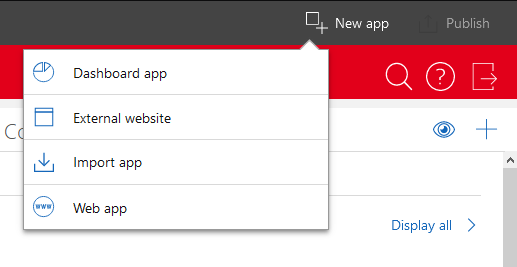
Function | Description | |
|---|---|---|
Import app | ||
Dashboard app | A Dashboard app contains several elements with which you can display information in a clear overview. An example of such an app is the Dashboard app which is included with the standard version. | |
External website | An External website is a website which is embedded in SmartWe. An example of an external website is the Unternehmensverzeichnis app. | |
SmartDesign app | A SmartDesign app is an app which is based on a data record type. You can create an app for every data record type. An example of a SmartDesign App is the Tasks app. | |
Web app | A Web App is a website on the Internet or a purely HTML-based App. An example of a Web App is the First Steps App. |


Editing a SmartDesign app
Within a SmartDesign App, you can customize the way forms are displayed to users. You can customize these forms in both read mode as well as in the editing mode.
Click Edit on the App Designer toolbar to customize the form you currently have open.

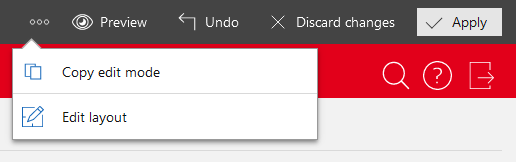
Function | Description | |||||
|---|---|---|---|---|---|---|
Action menu | You can find more settings for the opened form in the action menu.
| |||||
Events |
| |||||
Preview | Using this button, you hide the App Designer functions so that you can check how your changes will look to users. You end the preview by clicking Preview again. | |||||
Undo | Using this button, you can undo the last change. | |||||
Discard changes | With this button, you can discard all the changes you made to the current form. | |||||
Apply | This button saves your changes in the App Designer. The changes are not published. To make the changes available to all users, simply click Publish after applying the changes. |


Editing a web app or external website
You can customize any content displayed in a web app or on an external website.
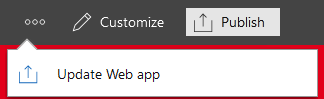
Function | Description | |||
|---|---|---|---|---|
Action menu | The action menu is available as long as the web app or external website is not opened for editing. The action menu contains these functions:
| |||
Customize | Using this button, you can customize different elements, for example, the title of the web app or the content of an external website. | |||
Publish | Using this button, you can publish your changes for all users. |

