Database field
Database fields are data record type fields. This includes the fields included in the standard version as well as your own custom fields.
You can create custom fields in the Administration app in the Data record types area.
SmartWeTeam
In SmartWe Team, the creation of data record types and database fields costs extra.
SmartWePremium
The creation of new data record types and database fields is included in SmartWe Premium.
You can find more information on how to create data record types and database fields in the SmartWe Online Help on the following page: SmartWe Online Help: Data record types and link types.
Display in SmartWe
In the following table you will see the different types of fields which can be made available in SmartWe as database fields. The way they appear depends on the type of field.
You cannot influence the way they appear in the App Designer directly. You can only influence the formatting for certain types of fields, for example, e-mail fields or telephone fields. You will find more information on the following pages in the Field type section:
Type of field | Appearance in editing mode |
|---|---|
Notes field | A notes field can contain text depending on the app functions for the formatting of text. In the example you will see a notes field without any formatting functions. 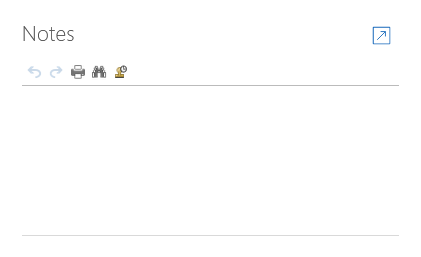 |
User selection field | A user selection field, contains a list from which users can select a user. In the example, you will see the Person responsible field for an Opportunity. 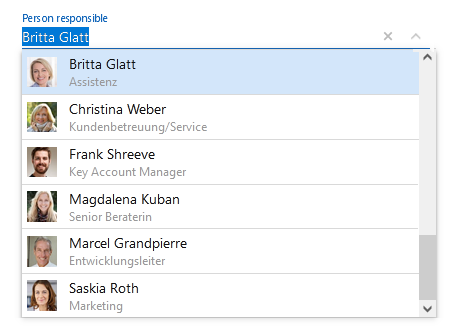 |
Checkbox | A checkbox can be active or inactive. In the example, you will see a deactivated checkbox.  |
Date selection field | The date can be formatted with or without the time. In the example, you will see the different display options for a date field. 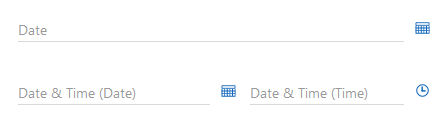 |
Number fields | Number fields are displayed as simple input fields. Decimal places can be displayed depending on the type of number field. In the example, you will see the Quantity field for a product item.  |
Single selection | A single selection is displayed as a drop-down list. Users can select a value. In the example, you will see the Sector field for a contact. 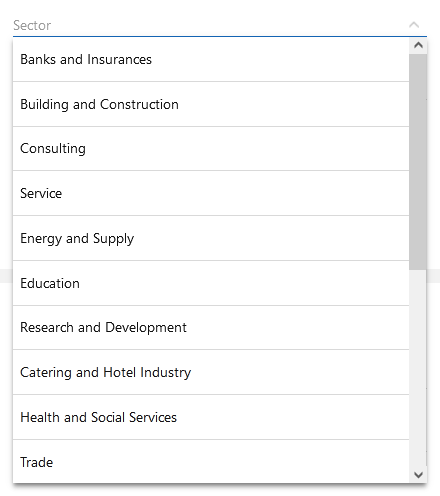 |
Multiple selection | A checkbox list contains several values which can be selected in a window. In the example, you will see the Permitted contact methods for a Contact. 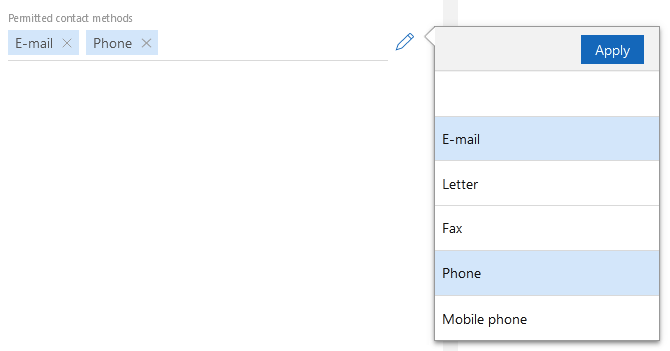 |
Text field | A text field contains simple text. In the example, you will see the First name and Last name fields for a Contact. 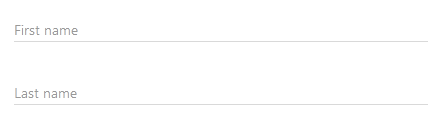 |
Currency field | A currency field is displayed with the icon for the currency currently being used. In the example, you will see the Price field for an Opportunity.  |