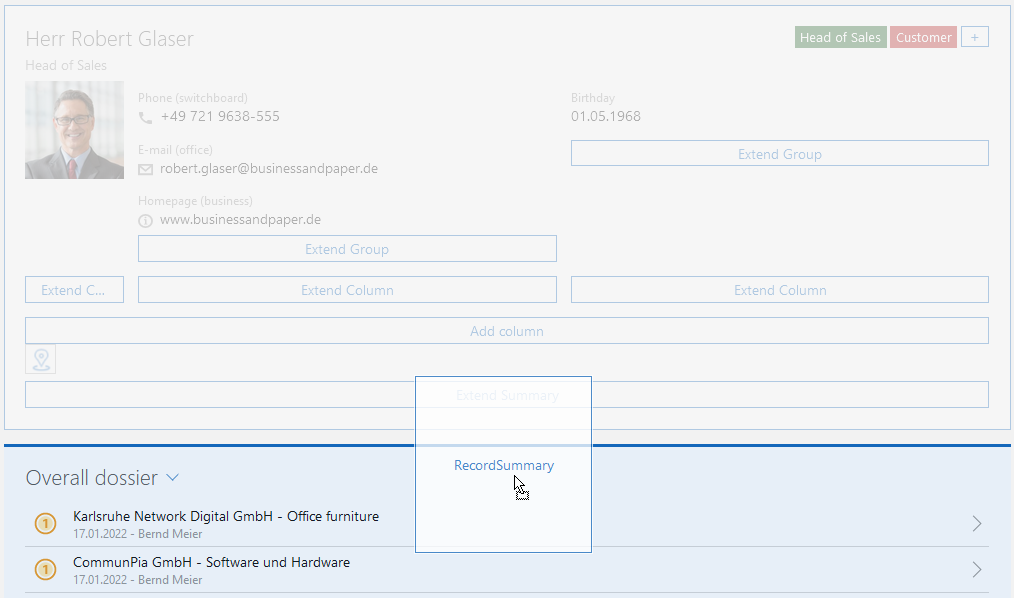
Dynamic
The dynamic frozen area is reduced when scrolling so that a shorter summary can be displayed. You can customize the appearance of both the full display and reduced display.
Display type
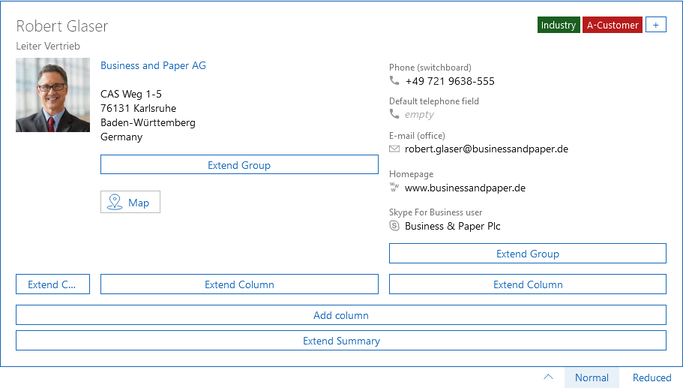
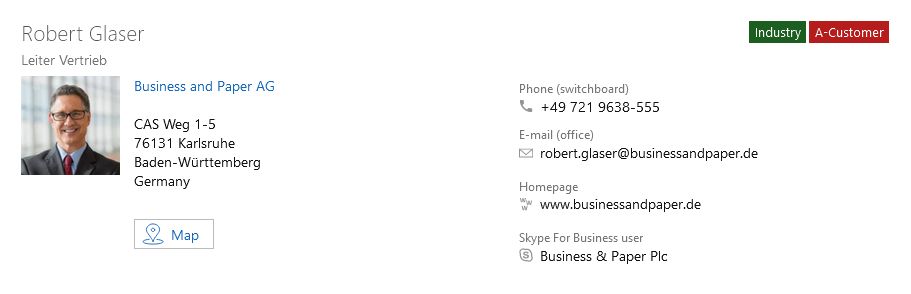
Appearance of the full display
- Here is an example of how it can appear in the App Designer:
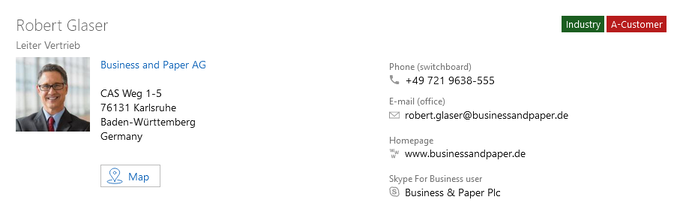
- Example to demonstrate the appearance as per the preview:
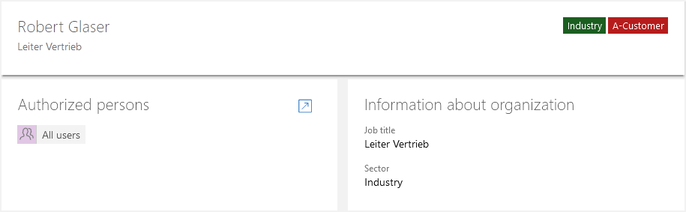
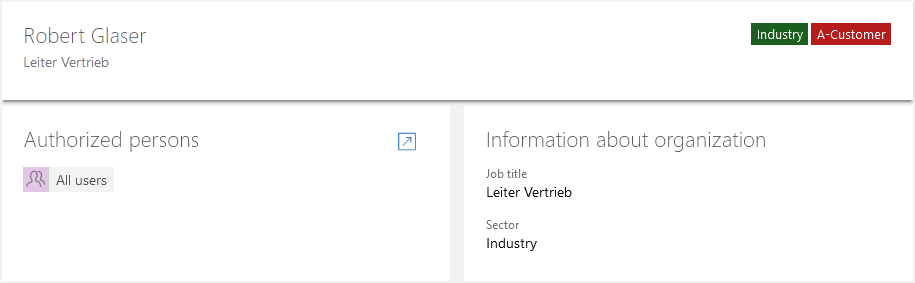
Reduced appearance
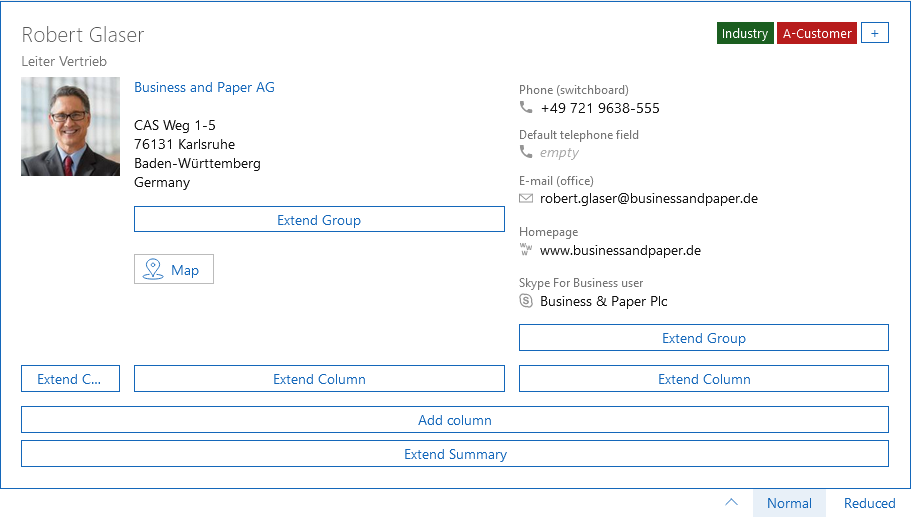
- Here is an example of how it can appear in the App Designer:

- Example to demonstrate the appearance as per the preview:

Extending the dynamic area
Click the Extend dynamic area button to insert content. You can insert all elements and fields which are available for the selected data record type.
Using the Summary element, you can design the content as you wish and add things like a Title, Subtitle and Badges.

Different buttons are displayed below the dynamic area, these buttons make working with the App Designer easier. These functions do not impact the way the published apps appear.
Button | Description |
|---|---|
Using this button you can hide the frozen area in the App Designer. This setting only applies as long as the App Designer is enabled. | |
Normal | Using this button, the dynamic area is displayed normally. |
Reduced | Using this button, the dynamic area is displayed in reduced mode. |

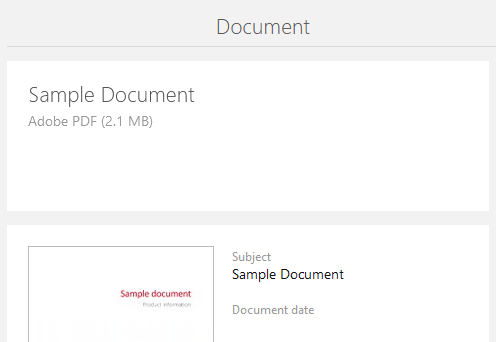
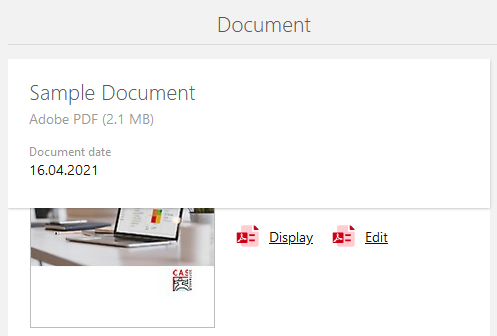
The reduced display should always contain less content than the full display. If the reduced display has more content, then the additional space for the reduced display will also be reserved for the full display and subsequently displayed there as an empty space.
Example:
Full display with empty space | Reduced appearance |
|---|---|
 |  |
Changing the layout of the static area
After you have selected a layout for the frozen area, it will be entered for the corresponding mask. If you wish to change the layout, you can, for instance, use the buttons on the toolbar to undo your changes or discard the changes for the current mask.
If you have made more extensive configurations and you do not wish to lose them, then, as a temporary measure, you can use drag and drop to move them to another location and then change the layout of the frozen area.
The following instructions describe changing the dynamic area into a static area.
Procedure
- Click the element contained in the dynamic area and drag it using drag and drop to the position of your choice.
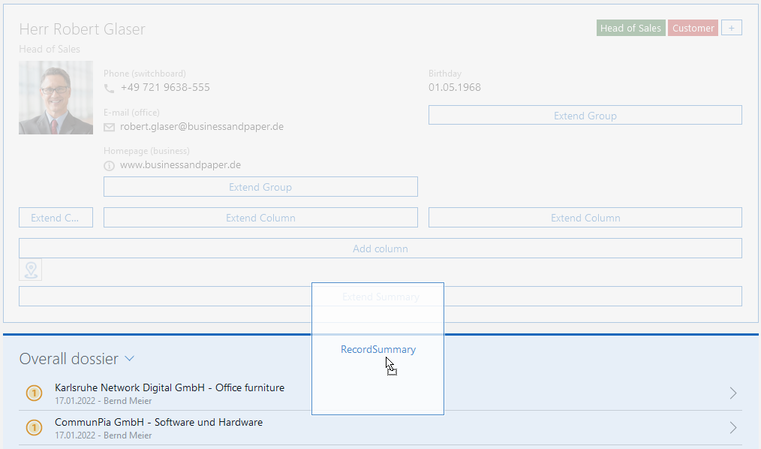
- Click the empty space directly above or below the Extend dynamic area button.
- The Dynamic area window will open.
- To delete, click the delete button in the Dynamic area window.
- The dynamic area is then deleted and the Manage frozen area button is displayed.
- Click Configure frozen area and select Static.
- Drag the previously moved element to the Extend static area button.
- The layout of the frozen area will have been changed and your previously configured content is now available in the static area.