Translations
On the Translations page, you manage the program texts and corresponding translations in different languages. You can edit existing texts and add new texts. You can always find the translations related to the respective app.
You can open this setting at different locations in the App Designer:
- In the App Designer area in the Administration app: Click the desired app in the App management block.
- On the SmartWe homepage: Open the context menu of the desired app and select Edit app.
- In the App Designer toolbar: In an opened app, you can find the Edit app menu entry in the view menu in the App Designer toolbar.
Functions
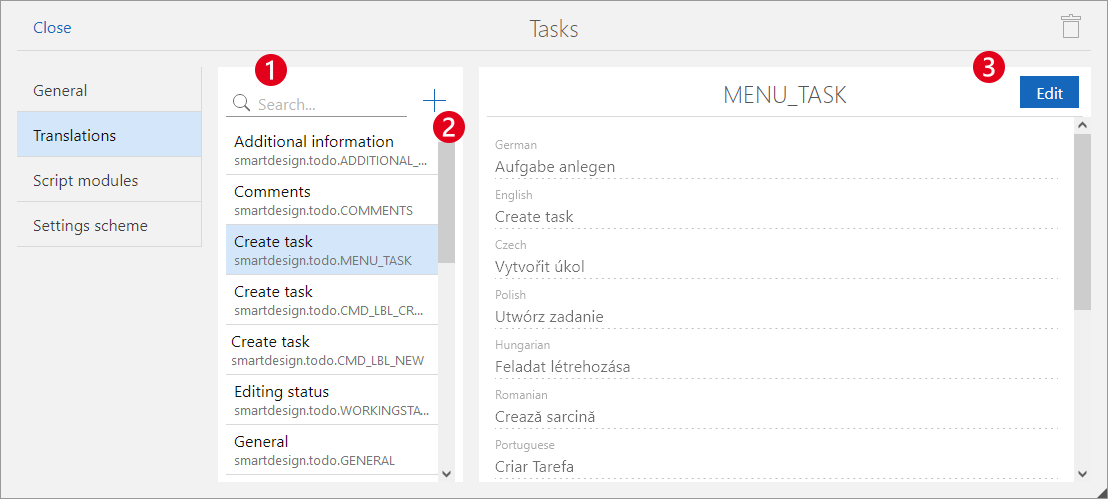
Function | Description | |
|---|---|---|
❶ | Searching | Using the Search, you can search for both texts and keywords.
|
❷ | Creating translations | Using the New translation button, you can create a new entry. The entry is created for the app you selected earlier. |
❸ | Editing translations | Using the Edit button, you open the Edit translation window, in which you can edit the program texts and customize the translations.
|
You have to publish your changes to make them available to all users and administrators.
You can find more information on the following page: Publishing changes.
Changing global texts
SmartWe uses different global texts for reoccurring labels. You cannot directly change these system texts. You can review these system texts in the App Designer area of the Administration app. To do so, click the Global entry in the App management block.
Even though you cannot edit these system texts, you can still customize them for individual elements or fields. In the process, you do not edit the existing texts, but create new texts for the elements or fields you want to change.
You want to add a Dossier block for a custom app but want to use another heading.
Procedure
- Open the desired mask for editing.
- Insert the Dossier element at the desired location.
- Click the button next to the Header field to create a new text. Enter the desired header in the desired language.
- After you have published your changes, the new Dossier block has a customized header.

You cannot overwrite all system texts with your custom texts. For example, you cannot change the labels of buttons.