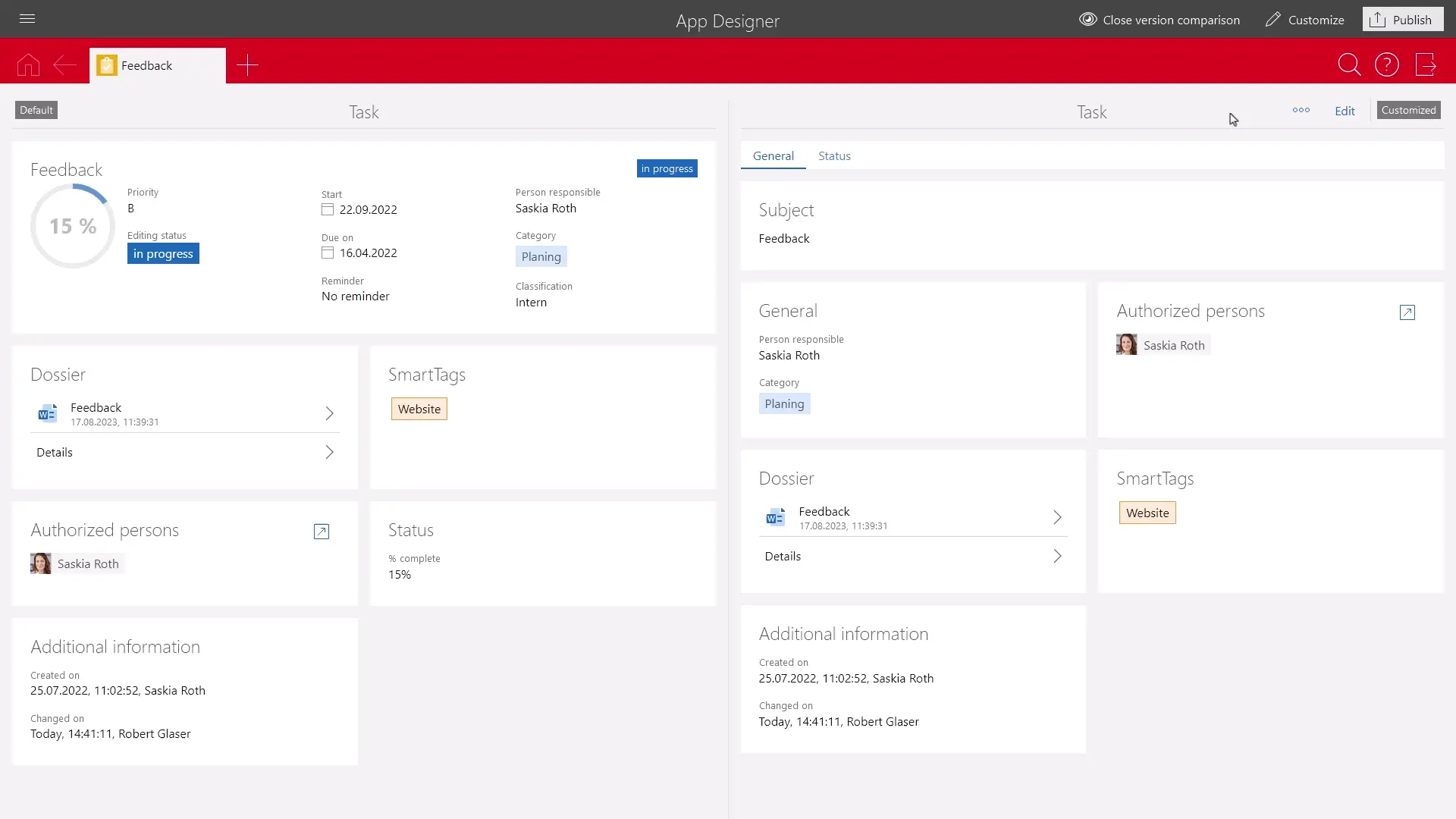
Updating automatically
You can use the Update automatically entry to manually start the form update if a form has not been updated to the current state during delivery of the new default forms.
Important information
- The Update automatically function is displayed in the action menu of the App Designer toolbar and is only available for forms that have not yet been updated automatically.
- After you have clicked Update automatically once, the function is no longer displayed in the toolbar for the corresponding form.
- When you apply and publish the changes with the App Designer after the automatic update, the respective form is automatically removed from the list of forms to be checked.
- When you end the App Designer session without publishing your changes, the Update automatically function is displayed again for the respective form after you start the next App Designer session.
- Some changes can be moved to a new tab during the automatic update, for example, if you have added an additional database field to a group that was removed from the default form.
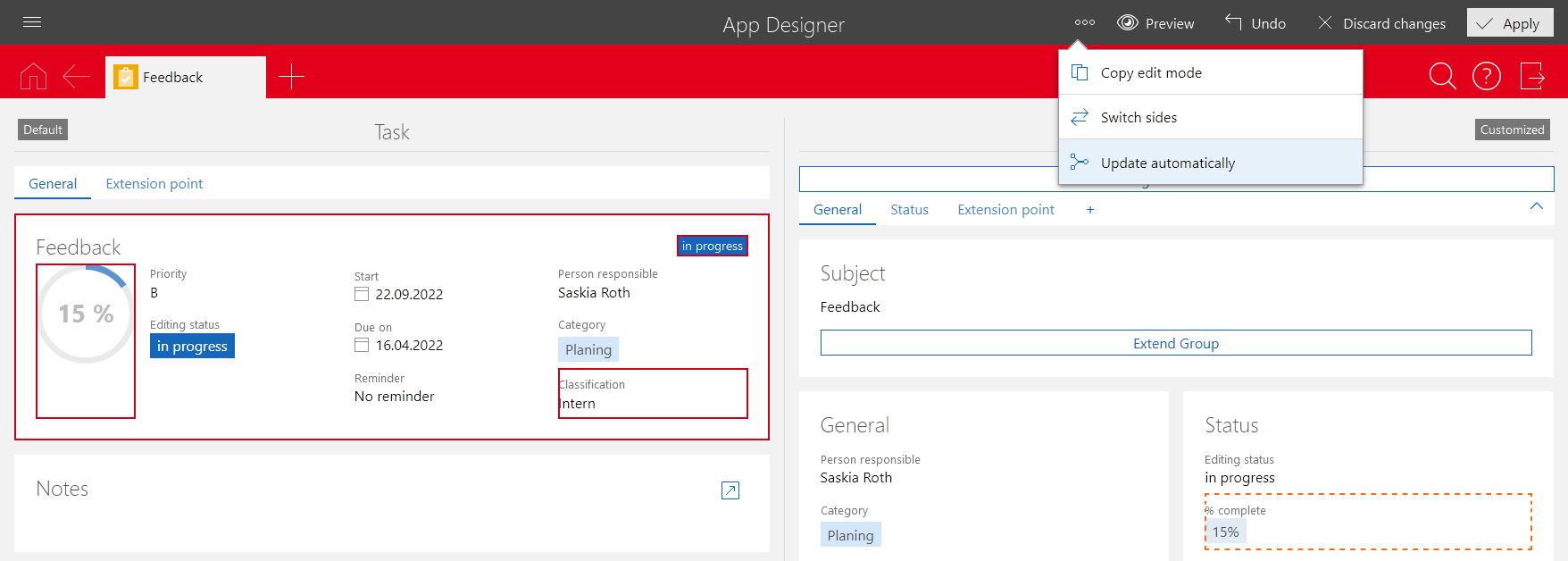
With the automatic update, the system attempts to automatically adopt the changes to the default form in your custom form. If the forms still differ after the automatic update, these differences are displayed, and you can manually rework your form.
Tip
If you do not like the result of the automatic update, you can simply undo the automatic changes.