Adopting elements
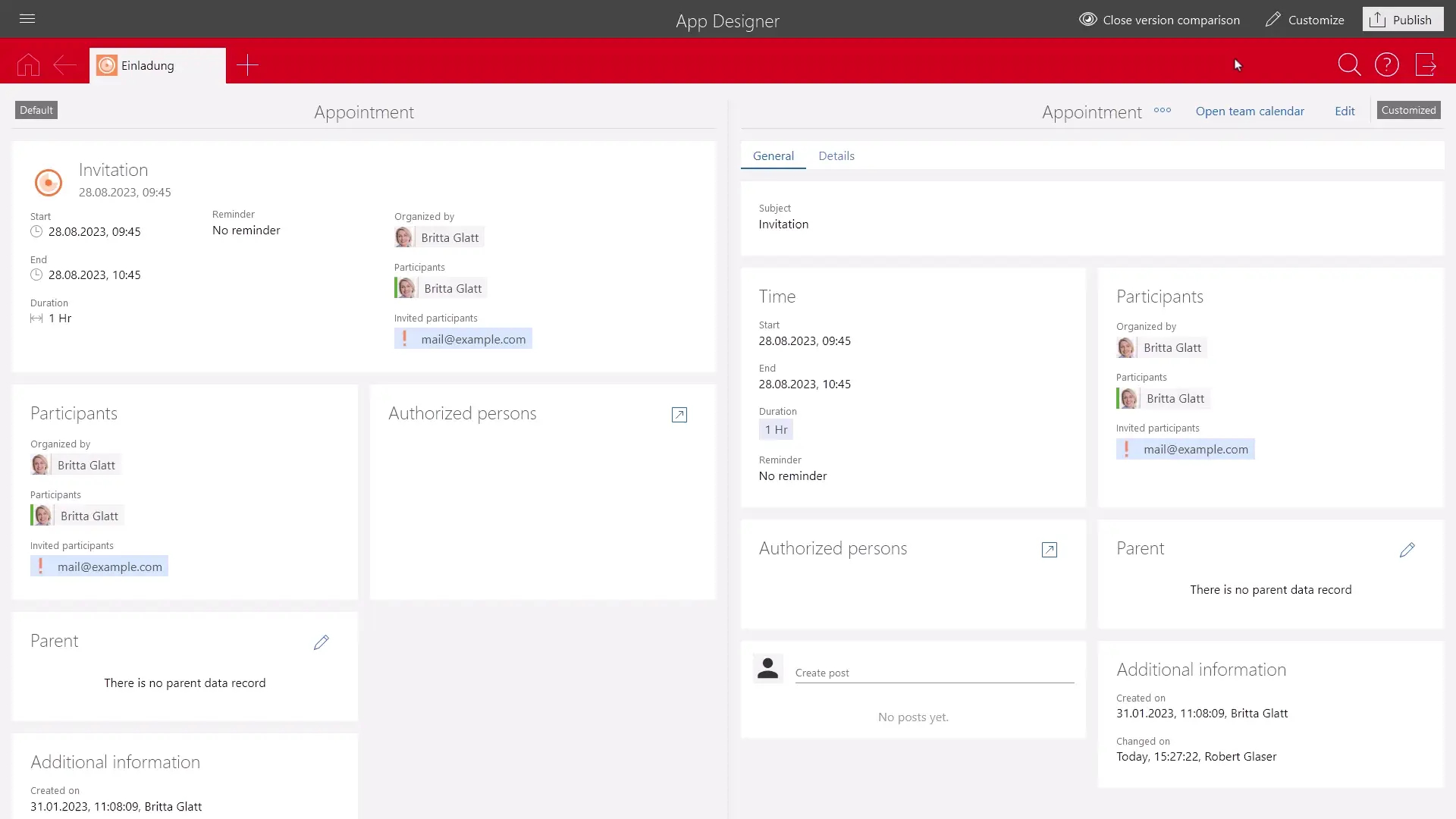
You can easily drag elements and fields from the default form into the customizable area. This way, you can adopt elements and fields in your form, including all settings.
Colored highlights indicate changes to the individual elements and fields. Please note:
- Only the elements that are missing in the custom form on the right are highlighted in the default form on the left.
- In the custom form on the right, only the elements with differing settings compared to the same elements in the default form are highlighted.
If you point the cursor to an element or select an element, the element is highlighted in different ways. For more details, see the following table.
Example | Description |
|---|---|
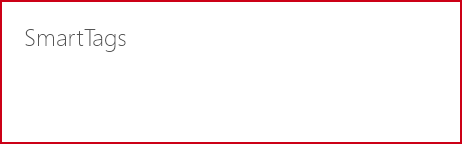 | If an element is missing on the right, the element is highlighted by a red solid line. |
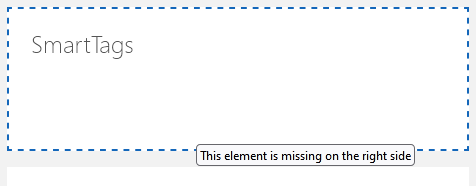 | If you point the cursor to an element, this element is highlighted by a blue dashed line. Any additional information is displayed in a tooltip. |
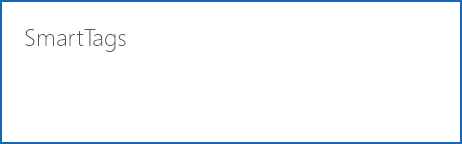 | When you click an element and thus select it, the element is highlighted by a blue solid line. |
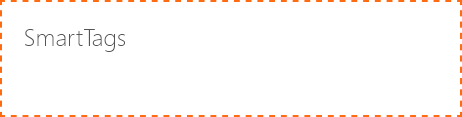 | If an element has different settings in the custom form than the same element on the default form, the respective element is highlighted by an orange dashed line. |
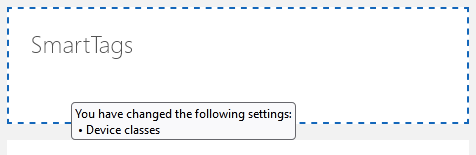 | When you point the cursor to an element that has different settings in the custom form than in the default form, the differing settings are displayed as a tooltip. Furthermore, the element is highlighted by a blue dashed line. |
 | After you click Find match, the corresponding element is highlighted on the other side. This highlight is removed after a few seconds. |

Adopting elements into the dynamic layout
If you want to adopt changes in the frozen area and you have set the dynamic layout, you need to manually adopt both the normal as well as the reduced display.
Moreover, you need to first manually create the dynamic layout if the dynamic layout is set. If you simply drag the summary of the normal display onto the Configure frozen area element, a static layout is created automatically.