Functions of the version comparison
When using the version comparison, you compare two versions of the currently opened form.
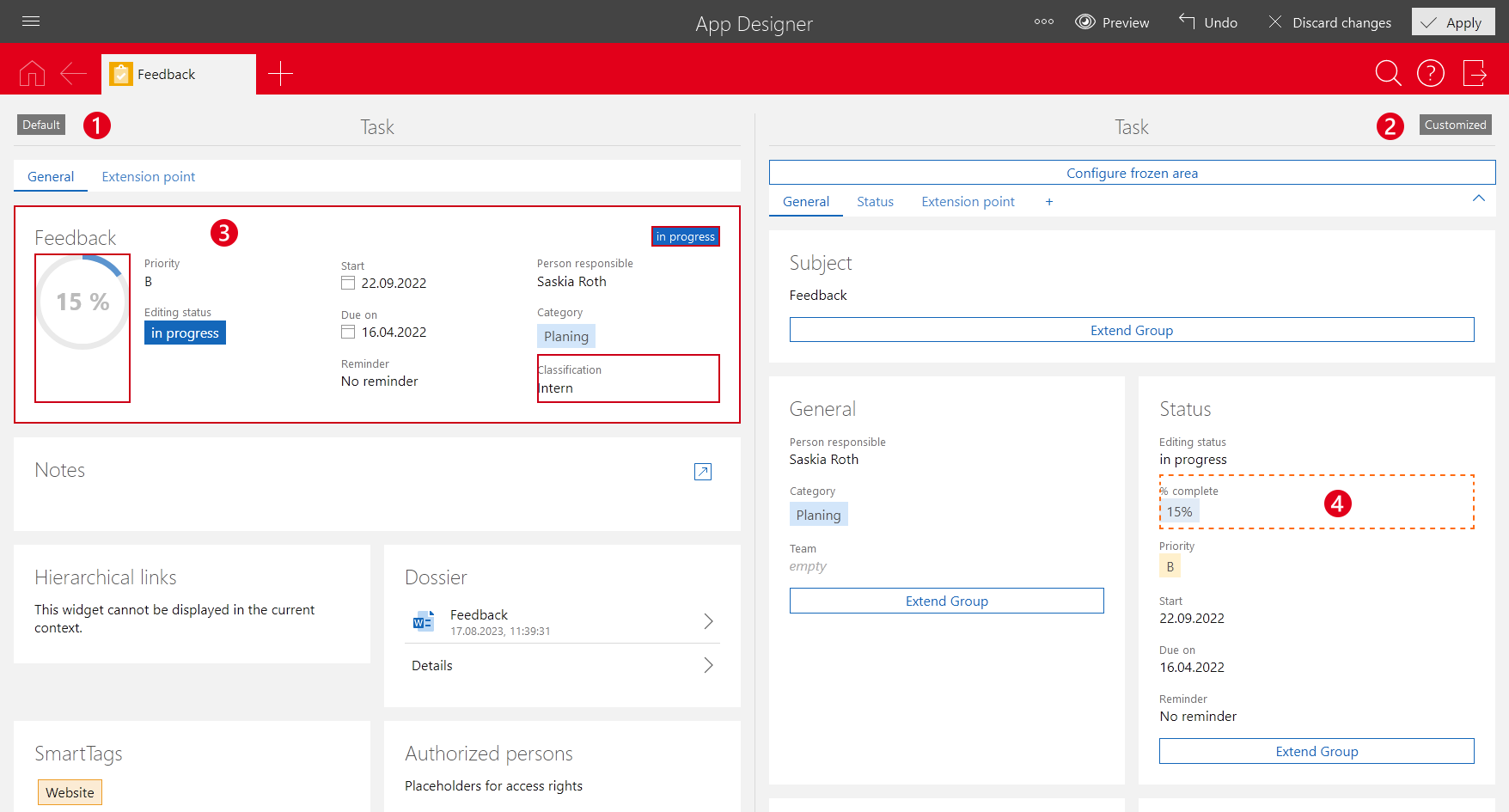
On the left, you can see the default form with the settings delivered by SmartWe. On the right, you can see the customized form with your custom settings. You can only change the right side.
In the version comparison, two versions of a form are displayed next to each other. Thus, the display of the forms can differ from the usual display, as there is less space for each form to be displayed.
Use the zoom function of your browser to minimize the page contents and display the familiar 2- or 3-column layout.
❶ Left side
On the left side, you can find the default form as it is included in the scope of delivery of SmartWe. The default form is indicated by the Default label.
The contents on the left mainly serve information purposes and cannot be edited directly. However, you can move elements or fields from the left to the right and then customize further for your form on the right.
You cannot customize the SmartWe default forms. Even though you can switch sides and thus temporarily display your custom contents on the left, this procedure does not result in actual changes to the respective default form. When ending the current App Designer session, the left side will be reset to the default of the respective SmartWe form.
❷ Right side
Your custom form is displayed on the right side. Your custom form is indicated by the Customized label.
You can edit the forms on the right side using the App Designer.
❸ Changes to the default forms
New elements and fields in the default forms are highlighted in red. The highlighted elements or fields can both have been newly added to the default form or deleted in the customized form.
If an element or field has only been moved to another position, the system will not highlight this separately.
❹ App Designer customizations
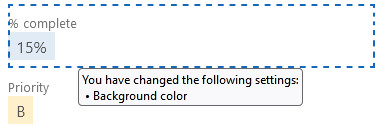
A dashed frame line indicates customizations to elements, fields, and so on. When you point the cursor to a changed element, the system displays which settings were changed.