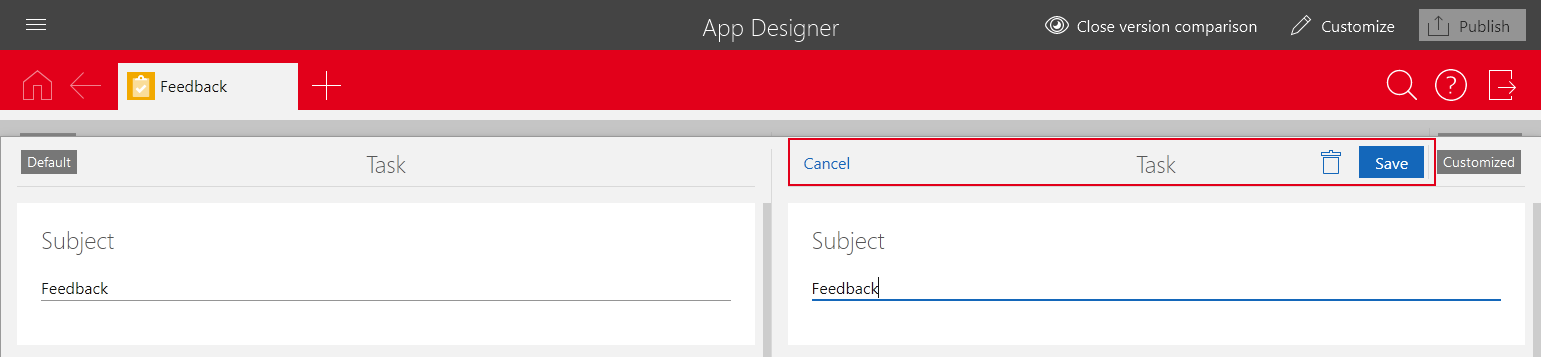
Opening the version comparison in the administration
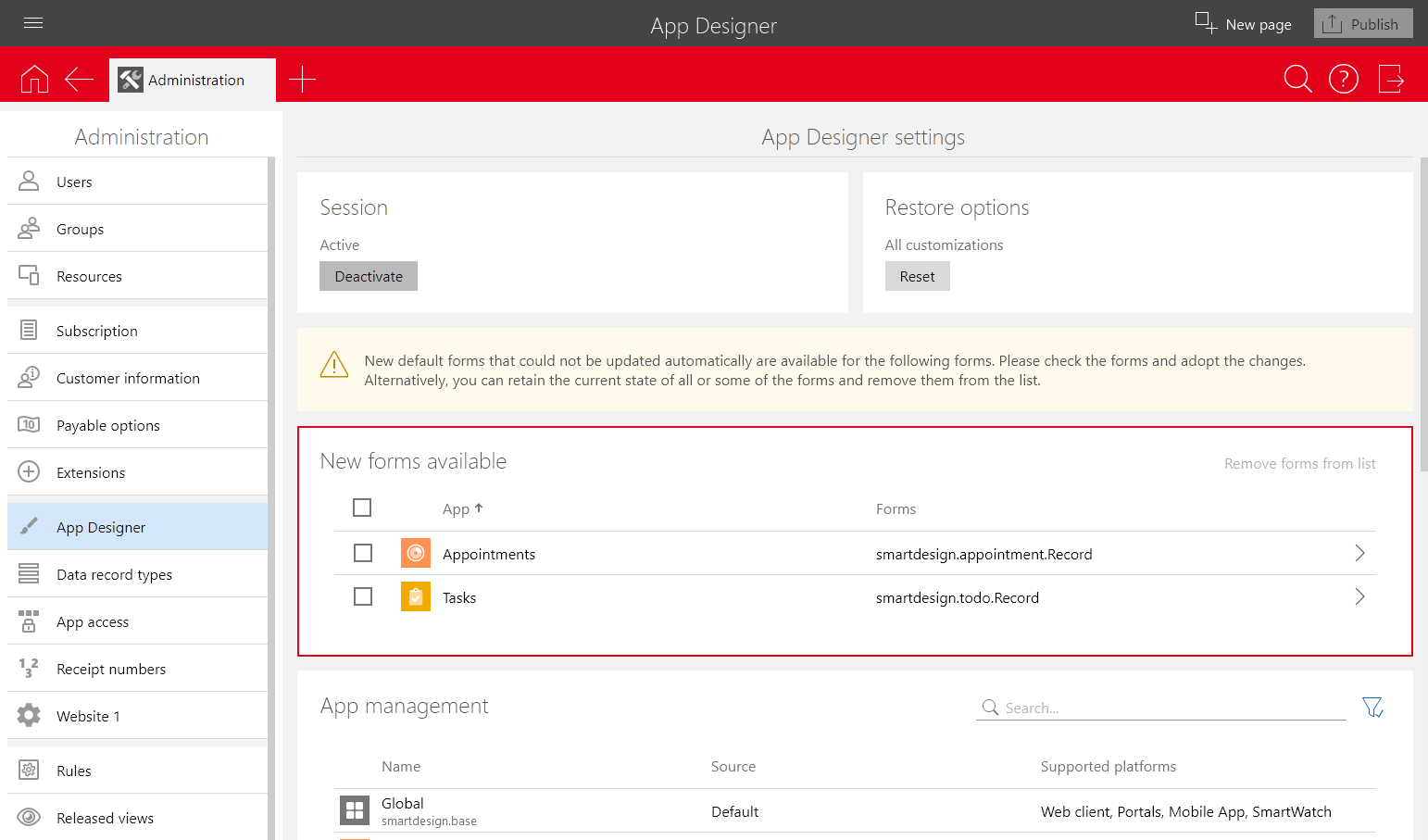
If forms could not be updated automatically, the affected forms are displayed in a list in the App Designer area of the Administration app.
If SmartWe displays New forms available after starting, you can click Edit forms and directly switch to the Administration app.
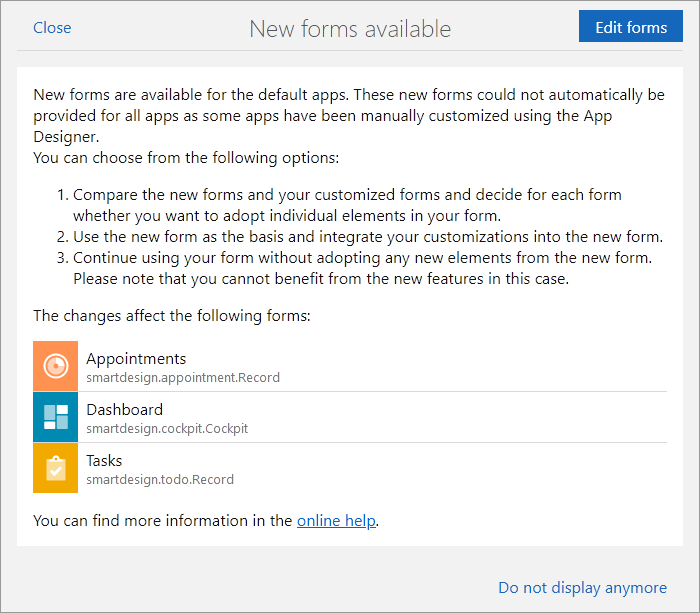
If this message is no longer displayed, you can view the list of new forms in the Administration app if the forms have not been removed from the list.
If the list is not available, you can open the version comparison in an app.
When you click one of the displayed data record types, a window to select a data record opens. In this window, you can find the data records you have last opened in the respective app. Additionally, you can use the search function to search for a specific data record.
As long as the version comparison is opened, you can not use all buttons on the corresponding SmartWe tab. For example, you cannot click Back to switch data records. If you want to use all functions again, you need to first click Close version comparison in the App Designer toolbar.
However, you can still open more tabs in SmartWe even if the version comparison is opened. You can use all functions as usual on the tabs on which you have not opened the version comparison.
Using the version comparison in read mode
- Open the App Designer area in the Administration app
- Click the app whose forms you want to compare in the New forms available block.
- A window in which you can select a data record opens.
- Select the desired data record and click Apply.
- The data record is opened in read mode and the version comparison is activated.
- Click Customize in the App Designer toolbar.
- You can now compare and customize the read mode form.
The differences between the form settings and missing elements are highlighted in color and can thus easily be identified and compared.
Using the version comparison in editing mode
- Open the App Designer area in the Administration app
- Click the app whose forms you want to compare in the New forms available block.
- A window in which you can select a data record opens.
- Select the desired data record and click Apply.
- The data record is opened in read mode and the version comparison is activated.
- Click the Edit button in the data record.
- The form is displayed in the editing mode and can now be compared with the SmartWe default form.
- Click Customize in the App Designer toolbar.
- You can now compare and customize the editing mode form.
The differences between the form settings and missing elements are highlighted in color and can thus easily be identified and compared.
Use the Update automatically function to adopt the changes to the default form in your form. This function is only available for forms that are displayed in the New forms available block.
If you want to leave the editing mode of the data record again, click the Cancel button in the data record. The buttons are only available on the right side of the version comparison as this side displays the active form.