Wizard layout
You can use the Wizard layout in the read and in the editing mode of a data record.
- In the editing mode, the users are guided step-by-step through the process of data record creation. You can customize the individual steps as well as the elements and fields on a page.
- In the read mode, you can display the wizard pages in read-only mode so that users can navigate the same steps as when creating the data record.
In the Wizard layout, you can find a navigation toolbar on the left-hand side and navigation buttons in the upper-right hand pane for navigating between the next or previous pages. In addition, buttons are displayed in the title line which are always available for the selected data record type, for example, the address wizard for contacts.
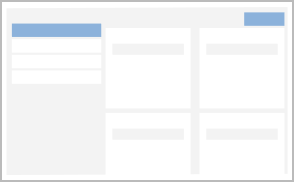
Default apps: Activating the wizard layout
You activate the wizard layout via the tab bar of a data record.
Custom apps: Activating the wizard layout
You can activate the wizard layout for custom apps via the action menu in the toolbar. However, this only applies to the editing mode of a data record and only if the default layout is activated.
Procedure in the editing mode of a data record
- Open a data record in editing mode.
- Click Customize in the toolbar of the App Designer.
- Open the action menu.
- Click Edit layout.
- Select Wizard layout.
- The wizard layout is activated immediately and can then be edited.


If the tab layout has already been activated for an app in the editing mode of the data record, you can switch layouts in the tab bar.
You cannot directly switch to the wizard layout in the read mode. Instead, you can insert the tab layout and then switch it to wizard layout.