Switching sides
The Switch sides function is available in the action menu of the App Designer toolbar.
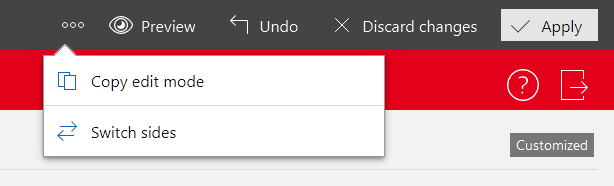
With this function, you switch the default form and the custom form.
This side switch can be used for the following purposes:
- You want to discard all changes to the form and use the default form instead.
- You want to use the default form as the basis for your form and then add your customizations.
If the Update automatically function is available, you can alternatively try to adopt the changes in your form.
The Update automatically function is available for forms that could not be updated automatically during the distribution of new default forms.
When switching sides, your customizations are moved to the area that cannot be edited. You cannot save your changes when your custom form is in this area.
When you end the App Designer session, all changes to the area that cannot be edited are lost.
The labels in the upper left and right indicate whether the sides have been switched.

- Default

- Switched sides